Laptop reading guide

How to read aloud on laptop from any browser

How to read aloud on laptop depends on what you want to hear: a webpage, a document, or text you have copied. Choose the matching route below, then check the voice, speed, and playback controls before you begin.

Your prompt is sent to the reader

Decide which case you are

Start with the simplest route for your material. The right choice avoids unnecessary copying, downloads, or browser troubleshooting.

Path A: read text from a webpage

This path works best when the words are already visible in your laptop browser and you want to preserve the page’s natural order.

Web reader

You are reading an article, guide, or news page and want the laptop to continue while your eyes rest.

Select the main text, send it to the reader, and listen in short sections so headings and paragraphs remain easy to follow.

read aloud online
Student

You are reviewing a lesson page and need to hear difficult sentences instead of silently rereading them.

Copy one section at a time, listen at a steady rate, and pause after unfamiliar terms for a second pass.

reading aloud practice online

Researcher

You have several browser tabs open and need a hands-free way to review selected passages.

Keep only the relevant text, remove menus or captions, and send a clean passage to the reader before switching tabs.

read aloud online

Accessibility-focused listener

Long pages cause eye strain, distraction, or difficulty maintaining visual focus.

Use spoken playback alongside the text, adjust the rate until words stay distinct, and pause whenever attention drops.

How to make something read aloud?

Path B: use copied text or a document

Choose this route when the source is a PDF, note, email, word-processing file, or another window that does not provide a convenient reading control.

  1. 1

    Gather a clean passage

    Copy the section you need and remove navigation labels, repeated headers, page numbers, or stray symbols. A clean passage produces more natural pauses and makes it easier to find your place.

  2. 2

    Send it to the reader

    Open the reading tool, paste the passage, and review the first few lines before starting. If the source is long, work in manageable sections rather than sending an entire book or report at once.

  3. 3

    Tune the listening session

    Start at a moderate rate, listen for pronunciation and sentence breaks, then adjust the voice or speed to suit the material. Keep the original document nearby for visual reference.

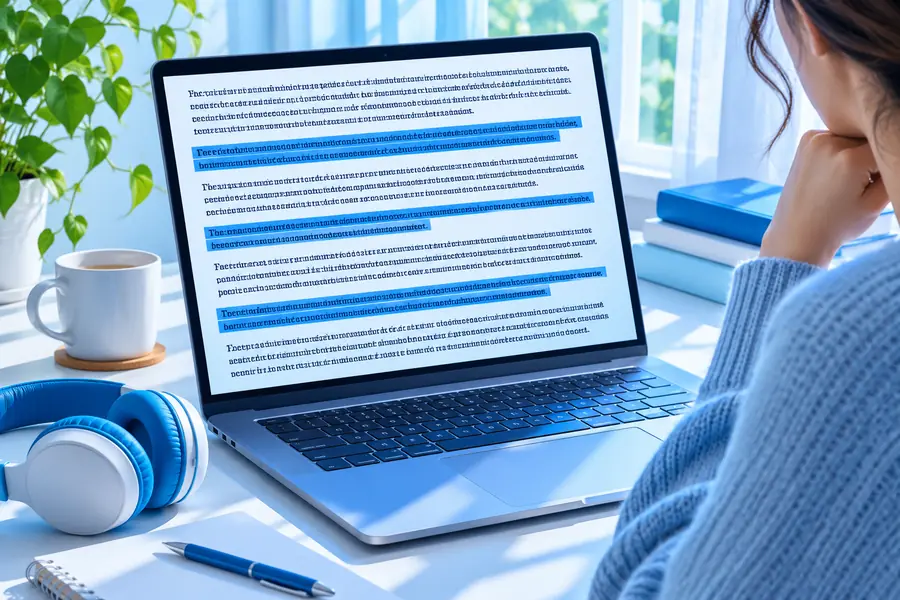
Laptop page with dense text selected for reading Before: mixed page content
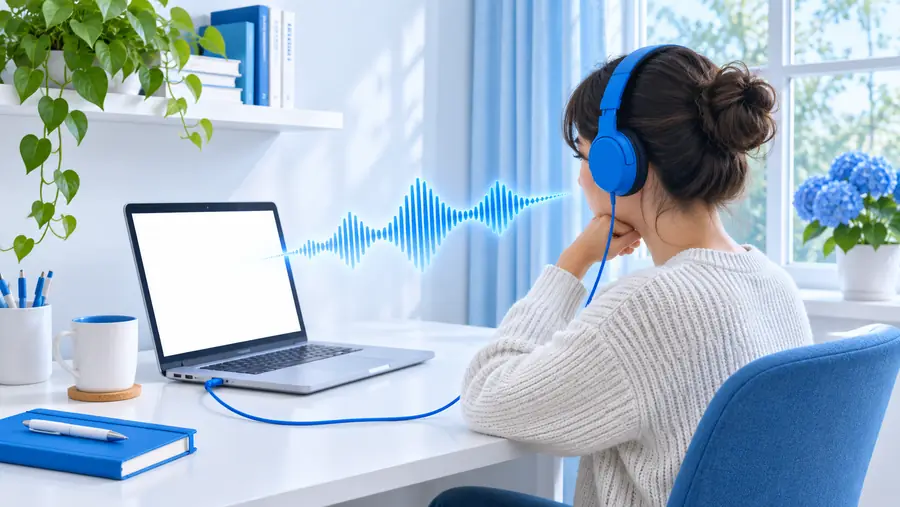
Clean online reading view with text ready for playback After: focused reading text
Remove page clutter before playback so the spoken result follows the text you actually want to hear.

Final check: confirm the setup

A laptop can read text aloud, but the result still depends on the source, browser, and listening environment. Check these limits before assuming something is broken.

It cannot reliably interpret every page layout

Menus, advertisements, cookie notices, tables, and multi-column designs can be selected in the wrong order or read as unwanted text.

Workaround

Copy only the article or passage you need, then remove repeated labels before sending it to the reader.

It cannot fix unclear source text

Scanned pages, images of text, handwritten notes, and protected documents may not provide usable characters for playback.

Workaround

Use a text-based version when available or convert the material into editable text before listening.

It cannot control your laptop’s sound hardware

Muted output, disconnected headphones, low volume, or an active video-call device can make successful playback seem silent.

Workaround

Test a short passage, check the active output device, and raise system volume before troubleshooting the text.

It cannot replace a final visual review

Names, formulas, links, punctuation, and specialized vocabulary may sound different from what you intended or may need visual confirmation.

Workaround

Listen first for flow, then scan the original text for details where exact wording matters.

Choose webpage text or copied material
2 routes
Confirm source, sound, and listening rate
3 checks
Play a few lines before a longer session
1 short test

Turn your laptop text into a listening session

Send a useful passage to the reader, then refine the pace after hearing the first few sentences. It is a practical way to review articles, notes, and study material without staying fixed on the screen.

Start reading aloud
  • Use a clean passage
  • Listen before adjusting speed
  • Keep the original text available

Tutorial FAQ

These answers cover common questions about using a laptop for spoken reading.

Select or copy the text you want to hear, open a reading tool, and start playback from the prepared passage. Test a short section first so you can confirm the voice, output device, and reading rate.

Yes. You can use a browser reading feature when one is available, or copy the main article text into an online reader. Removing menus, advertisements, and repeated page elements usually produces a clearer result.

If the PDF contains selectable text, copy a section into the reader and listen from there. Scanned or image-only PDFs may need text recognition or a separate text version before spoken playback will work well.

Check that the passage contains selectable text, the browser or reader is not muted, and the correct speakers or headphones are active. Try a short clean passage to separate a source problem from a sound or browser problem.

Start at a moderate rate and listen for whether sentence endings and unfamiliar words remain distinct. Lower the speed for dense technical writing, or raise it gradually when ordinary prose feels easy to follow.

Try text to speech
Try text to speech